

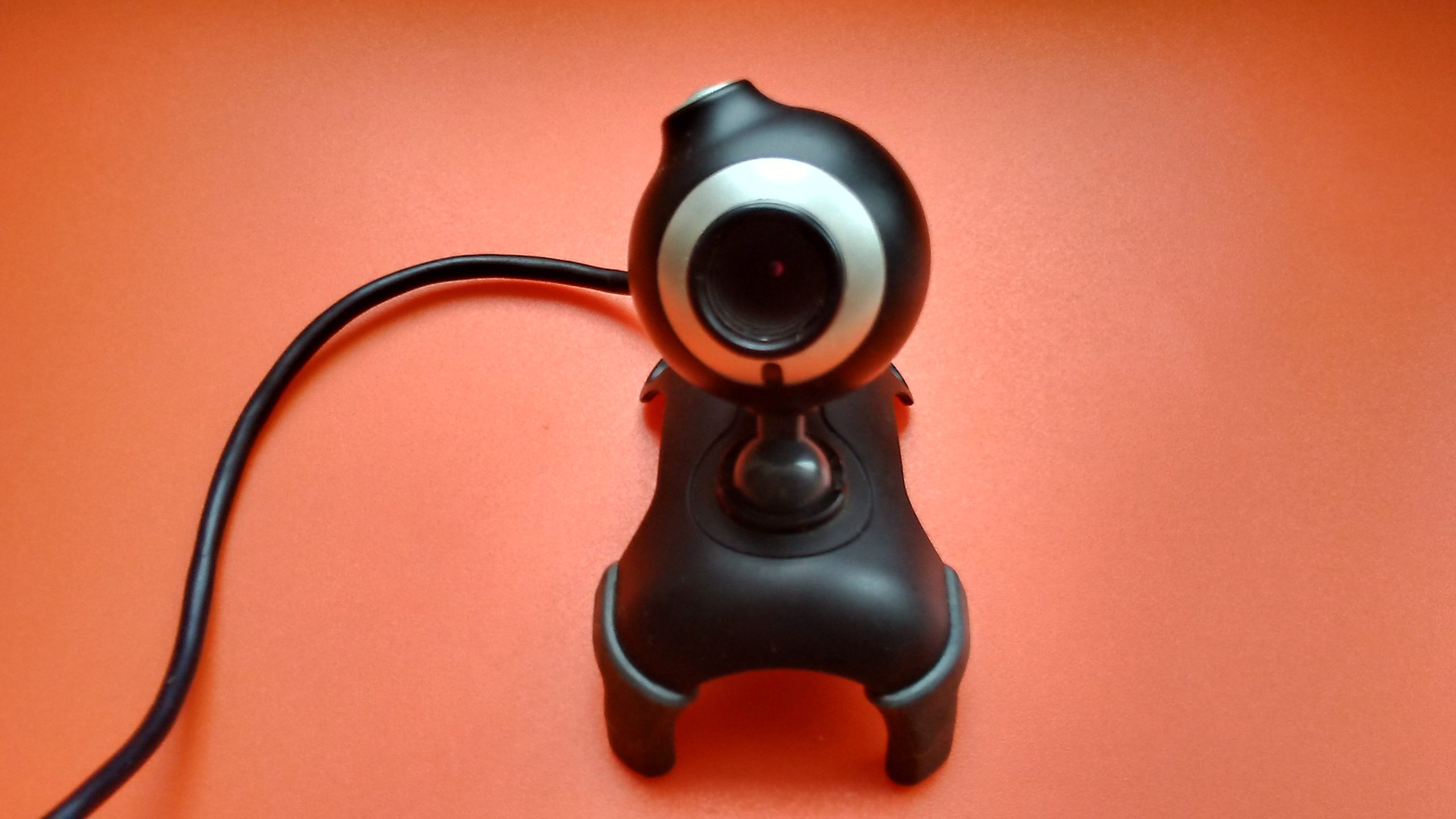
Video meetings are now a daily fixture of American work life, and picture quality shapes how colleagues and clients perceive you before you say a word. Choosing the best webcam for video calls means balancing resolution, low-light performance, field of view, and price against how often you actually present, host interviews, or sit in back-to-back meetings. This guide breaks down the features that matter most so you can shop with confidence instead of guessing at spec sheets.
Whether you are outfitting a single home office or standardizing equipment across a distributed team, the right webcam for meetings pays for itself quickly. A crisp, well-lit video feed reduces the “can you hear/see me?” friction that eats into meeting time, and it signals professionalism to clients who may never see your office in person.
Why Webcam Quality Matters for Remote Work
Built-in laptop cameras are designed for cost and thinness, not clarity. Most sit at the bottom bezel of a screen, produce an unflattering upward angle, and struggle in mixed indoor lighting. A dedicated external camera corrects the angle, usually mounts above the display, and includes a larger sensor that handles a dim home office far better than integrated hardware. For anyone searching for the best webcam for remote work, this single upgrade often delivers the most noticeable improvement in how they appear on-screen.
Beyond appearance, reliable hardware reduces technical friction. A webcam with a solid driver and firmware track record is less likely to freeze mid-call or default to a low-resolution stream when bandwidth dips — a detail that matters when a client-facing presentation is on the line.
1080p vs 4K Webcam: What Resolution Do You Actually Need?
The 1080p vs 4K webcam question comes up constantly, and for most professionals the answer is simpler than the marketing suggests. Full HD 1080p at 30 frames per second is the practical sweet spot for typical video conferencing platforms, which usually compress and downscale incoming video regardless of source resolution. A well-implemented 1080p sensor with good optics and image processing will often look sharper in a live call than an underpowered 4K sensor squeezed through the same bandwidth limits.
4K becomes worthwhile in specific scenarios: recording video for YouTube or training libraries, digitally zooming and cropping the frame without losing detail, or future-proofing a setup for higher-bandwidth conferencing standards. If your primary use case is Monday-to-Friday meetings, prioritize sensor quality, lens aperture, and low-light handling over raw pixel count.
| Feature | Good for Daily Meetings | Good for Content Creation |
|---|---|---|
| Resolution | 1080p @ 30fps | 4K @ 30fps or 1080p @ 60fps |
| Field of View | 78–90 degrees | 65–78 degrees (less distortion) |
| Low-Light Performance | Critical | Important |
| Autofocus Speed | Critical | Important |
| Price Range (USD) | $40–$100 | $100–$200+ |
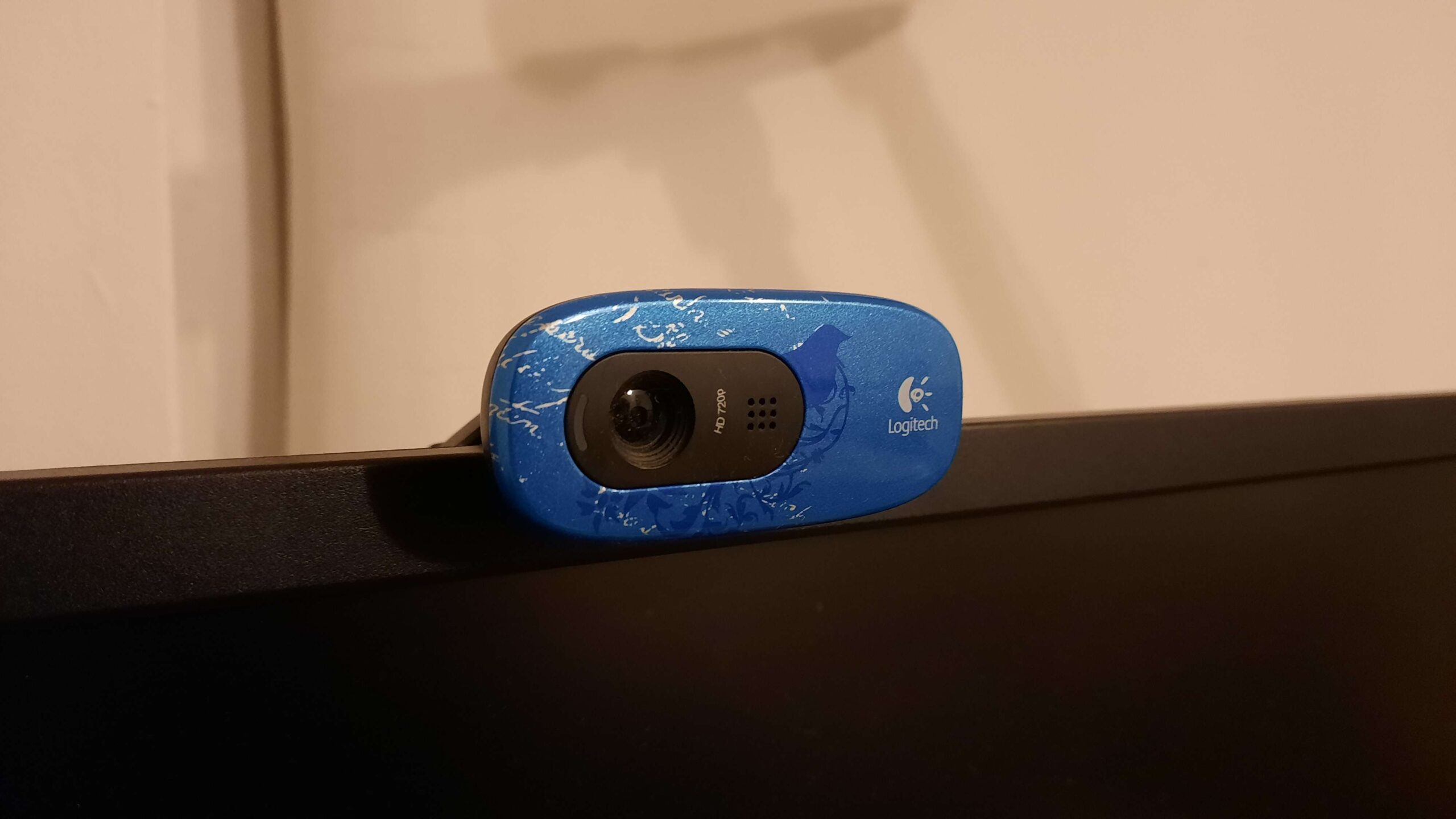
Key Features to Compare Before You Buy
Field of View and Framing
A wider field of view suits shared spaces or multiple people on camera, while a narrower angle produces a more flattering, less distorted headshot for solo calls. Many higher-end models let you digitally adjust the crop, which is useful if you switch between one-person and small-group calls throughout the week.
Autofocus and Exposure
Fast, reliable autofocus keeps you sharp even if you lean back or gesture during a discussion. Automatic exposure correction is equally important — it prevents you from appearing as a silhouette against a bright window, a common complaint in home offices with large windows behind the desk.
Microphone Quality
Many buyers focus entirely on video and forget that most webcams include a built-in microphone. Dual or stereo microphones with background noise reduction can eliminate the need for a separate USB mic for casual meetings, though dedicated microphones remain better for podcasts or client-facing presentations.
Connectivity and Privacy Considerations
Most webcams connect over a simple USB-A or USB-C cable, which remains the most reliable option for meetings since it avoids the latency and pairing issues that can occasionally affect wireless accessories. If your desk setup already has limited ports, look for a model with a slim inline cable and a compact housing rather than adding a hub purely for the camera.
Privacy has also become a standard consideration. A built-in physical privacy shutter lets you block the lens without unplugging the device between calls, which is a small feature that matters a great deal to anyone working from a shared living space or a home office visible in the background of family life. It is a detail worth checking in the product description before purchase, since not every model in a given price range includes one.
Confirm the camera works natively with the platforms your team actually uses — Zoom, Microsoft Teams, Google Meet, and Slack huddles all have slightly different default settings. Companion software that lets you fine-tune white balance, field of view, and background blur adds flexibility without needing a third-party app. If you are looking for a reliable option with mature cross-platform software, you can try Logitech, whose webcam lineup covers everything from budget 1080p models to premium streaming-grade cameras.
Key Takeaways
- 1080p at 30fps is sufficient for the vast majority of daily video meetings.
- Low-light performance and autofocus speed matter more than raw resolution for everyday calls.
- A wider field of view suits group calls; a narrower one flatters solo headshots.
- Built-in microphones are convenient but not a replacement for dedicated audio gear in client-facing work.
- Software compatibility with your team’s meeting platform avoids day-one setup headaches.
Pros and Cons of Upgrading to an External Webcam
Pros
- Noticeably sharper image than most built-in laptop cameras.
- Better low-light handling for early morning or evening calls.
- Flexible mounting options for a more flattering camera angle.
- Often bundles improved microphones, reducing the need for extra hardware.
Cons
- Adds one more USB device and cable to manage on a crowded desk.
- Premium 4K models carry a real price premium over 1080p alternatives.
- Requires occasional driver or firmware updates for best performance.
For teams standardizing equipment across a distributed workforce, consistency matters as much as raw specs. For better efficiency across a whole team’s video setup, consider exploring Logitech‘s business-tier webcams, which are built for predictable performance and centralized management at scale.
FAQ
Q1: Is 1080p good enough for professional video calls?
Yes. For the overwhelming majority of meetings on Zoom, Teams, or Google Meet, a quality 1080p sensor with good low-light performance and autofocus will look as good as, or better than, an underpowered 4K camera, since most platforms compress video regardless of source resolution.
Q2: Do I need a 4K webcam if I only attend meetings, not record video?
Generally no. 4K is most valuable for content creators, recorded training videos, or anyone who needs to digitally crop and zoom the frame afterward. If your camera is used purely for live meetings, prioritize sensor quality and low-light performance over 4K resolution.
Q3: What is the best webcam for remote work if I have a dim home office?
Look specifically for a wide aperture lens (f/2.0 or lower) and HDR or automatic exposure correction. These specifications matter far more in a dim room than headline resolution numbers, since a poorly lit 4K image will still look worse than a well-exposed 1080p one.
Q4: Can I use a webcam’s built-in microphone instead of a separate mic?
For most day-to-day internal meetings, yes — modern webcam microphones with noise reduction are perfectly serviceable. For client presentations, podcasts, or recorded training content, a dedicated USB or XLR microphone still delivers noticeably clearer audio.
Conclusion
Finding the best webcam for video calls comes down to matching hardware to how you actually work, not chasing the highest resolution number on the box. For most remote professionals, a well-reviewed 1080p camera with strong autofocus, good low-light correction, and reliable software support will outperform a cut-rate 4K model in real meetings. If you want a dependable starting point backed by mature cross-platform software, you can try Logitech as you compare options, then match the specific model to your lighting, framing, and budget needs before you buy.





Leave feedback about this